Este cuadro de diálogo controla las funciones de venta. Puede encontrar información general en Ventanas y Di´logos
aquí..»
Please note that explicitly allowing a window or dialog overrules the denying.
If both applies to an entry in this list it will be allowed.

On Window Display
 Close window immediately
Prevents defined windows or dialog boxes from being displayed. By default, dialog boxes such as "save as..." will be disabled. When this function is activated, a dialog box will appear with the message "not supported function."
The highlight: If the user tries to outwit the system several times, the so-called TILT Mode will be started, which will freeze the computer for 30 seconds and display a corresponding window.
 Close window when it falls into the background (behind SiteKiosk)
After it has fallen into the background, i.e. behind the browser surface, the window will be closed within a few seconds. This option is important especially if you have chosen to hide the window bar under Toolbar, since the user will not be able to return to the program.
 Explicitly allow the display of this window
If you enable this option, this type of window will be displayed until a user clicks the logout button or a Payment Module session ends.
 Close Window when screen saver comes on
If this window is explicitly allowed to be displayed and you enable this option, all open windows and applications of this type will be closed when the screen saver comes on. If you use the Payment Module, the same will happen whenever the credit balance amounts to zero. As a consequence, the applications will have to be restarted after the screen saver was deactivated.
 Terminate any process which generated this window
Many applications will display a dialog box such as "Save changes?" when the user wants to exit them. In order to make sure that the application will be closed automatically nonetheless, you should enable this option. Of course, this may result in the loss of the user's data.
 Deactivate this rule for the limited SiteKiosk user
Window types with this option enabled will only be displayed if SiteKiosk is launched under the protected SiteKiosk user account. This prevents from security risks that would occur if a user can manipulate the system with this window because SiteKiosk is run under a non-limited user account. If "Explicitly allow the display of this window" is enabled, the window will be shown in all cases, though.

Options for closing the window
Send WM_CLOSE to close the window (Default)
By default, almost all windows can be closed by sending the command WM_CLOSE.
Send WM_COMMAND to close the window
However, some windows and dialog boxes cannot be closed with the help of WM_CLOSE. Instead, you will have to send a WM_COMMAND ID to existing buttons such as OK, Cancel, Retry, etc. You can use the following IDs:
- OK
- CANCEL
- ABORT
- RETRY
- IGNORE
- YES
- NO
- CLOSE
- HELP
- TRY AGAIN
- CONTINUE
Thus, if a CANCEL button is assigned to the dialog box, it might be possible to use ID 2 to also close the dialog box.

Define Window Title And Class
Window title
You can find the title of a window or a dialog box in the upper (window) frame of most dialogs and applications. In the sample image the window title is "Save as." This is why, by default, "Save*" will be added to the list under Monitored Windows provided that you work on an English operating system. In this context, the "*" serves as a wild card character:
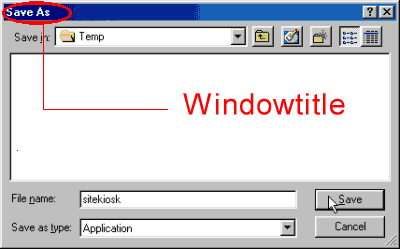
Some applications and games do not display a window title when they are started, for example, in full screen mode. In this case, the text of the entry in the window bar (task bar) serves as the window title. Simply point the mouse at the entry in the task bar and wait a second in order to be able to read the title:

You can also use additional utilities such as AutoIt, which can read out the window titles and classes for you.
Window class
You can only read out the window class by means of utilities like AutoIt. The advantage of window classes is that they are, in contrast to window titles, independent from the applied language and, therefore, facilitate a definite identification.
Sample values for the program CALC.EXE
The program Calc.exe (Windows calculator), which is included in your copy of Windows, provides the following values:
Name of the program: Calc.exe
Window Class: SciCalc
Window Title: Calculator
|

List of Search Patterns For Child Windows
In general
This option will only be needed in a few special cases. One of them is, for example, the application RealAudio (or rather the starting of .ra files). If the user clicks on a RealAudio file on a web page, the download dialog box will appear (very briefly). This dialog box, however, is disabled by default.
By specifying additional sub-elements in this dialog box, you will be able to distinguish a RealAudio download window from any other download window. This will allow you to prevent the download of .ra files from being blocked.
Configuration
Please collect subelements of the dialog box by means of AutoIt and enter them here. You might have to enter several sub-elements in order to improve distinction. In this case, you can consider a window to be identified if:
- ...it contains all defined child windows
With this option, you define that all child windows defined here have to be found in order to apply the options defined in this dialog.
- ...it contains at least one of the defined child windows
This option identifies this window, if one of the defined child windows is found.


 Back to top

 Inicio Ayuda