
Opciones de Arranque de SiteKiosk

En el menú de arranque de SiteKiosk, al que accedemos
- desde el icono "Iniciar SiteKiosk"
- cada vez que utilizamos el "Asistente de Configuración" y elegimos la opción "usar nueva configuración y ejecutar SiteKiosk"
están disponibles
las siguientes Opciones de Arranque:
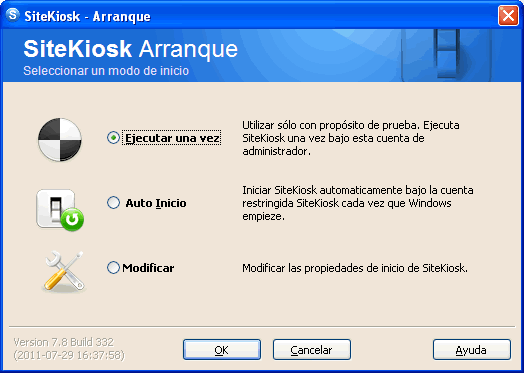
- Ejecutar una vez
SiteKiosk se lanzará sólamente una vez desde la cuenta de administrador aplicando la configuración actual, en general para pruebas.
Tenga en cuenta que aunque muchas de las características se pueden probar de esta forma, SiteKiosk está concebido
para trabajar con el usuario limitado, y en ocasiones determinadas funciones sólo funcionan correctamente bajo el usuario limitado, en particular
todas aquellas que dependan de ajustes de sistema dependientes de Windows y el perfil de usuario.
- Auto Inicio (modo seguro)
- SiteKiosk se lanzará automáticamente en cada arranque del sistema.
- El inicio de sesión será realizado con la cuenta de usuario limitado especificado en el apartado auto-login (por defecto, el usuario SiteKiosk).
- El shell de Windows será reeemplazdo por el shell de SiteKiosk, consiguiendo el sistema más seguro posible, y por lo que nos referimos también
a este modo de arranque como "modo seguro". Atención: cuando el administrador salga de Sitekiosk, al administrador se le ofrecerá mantener los ajustes de inicio
(en cuyo caso el sistema seguirá en modo seguro y volverá a ser efectivo en el siguiente arranque), o bien cambiar los ajustes de inicio, lo que significa que
si son desactivados, Windows mostrará el inicio de sesión quedando el sistema abierto de nuevo.
- El Bloqueo de Teclado será deshabilitado una vez que el arranque se ha iniciado.
- Modificar / Personalizado
Permite utilizar sus propias opciones de arranque. Podría, por ejemplo, querer definir su propia combinación de teclado para liberar el
bloqueo de teclado, ya que la combinación por defecto podría ser conocida también por hackers.
Información Adicional:
- Reemplazar el shell actual del sistema
Only shell replacement during bootup in safe mode will provide additional protection by the SiteKiosk configuration password. In addition, this mode will allow you to display small program icons,
for example that of Microsoft Messenger, in SiteKiosk's task bar!
- Settings only apply to the restricted SiteKiosk user account
This option applies to auto start/shell replacement and if activated enables these settings for the SiteKiosk user account only. Under other user accounts Windows then starts as usual, in this case the special SiteKiosk protection is not applied for these accounts.
- Disable any keyboard input during startup
This option is only available when Auto Start and Shell Replacement are enabled.
- Do not display quick start dialog box at startup
Sets the starting mode of the quick start dialog box automatically to "Customize".
- Log on automatically at system startup
Automatize the logon process.
- ! Installation under 2000/XP/Vista/7 (user rights)
- Using a time switch
- Manual start from within an application
For example from within Tool Book or Macromedia applications or your own scripts

Manual Start From Within Applications
You can start SiteKiosk from within other applications such as Toolbook, Macromedia, etc. In the Configuration Wizard you can set SiteKiosk to be closed without the entering a password, or after a certain period of idle time.
The following syntax will activate the program:
"(installationpath)/sitekiosk.exe (configpath)/(configname).skcfg"
Example:
SiteKiosk is located in the folder c:\programfiles\sitekiosk, and the configuration file "example.skcfg" can be found in the folder c:\programfiles\sitekiosk\config
| "c:\programfiles\SiteKiosk\sitekiosk.exe c:\programfiles\SiteKiosk\config\example.skcfg" |

Run SiteKiosk Only Once
This means that SiteKiosk will run the selected configuration immediately. This function is intended for testing purposes only.
Note:
This option will not run SiteKiosk when the computer is rebooted!

Run SiteKiosk Automatically on Windows Startup
This means that SiteKiosk will start whenever Windows starts. All applications that are run on startup can be found in the registry under
| HK_LOCAL_MACHINE/SOFTWARE/MICROSOFT/WINDOWS/CURRENTVERSION/ RUN + RunOnce + RunServices |
AND applications that are located in the Startup folder of the system will be run along with SiteKiosk. Since SiteKiosk itself registers at the same location in the registry, it will be started automatically, too.
Note:
The disadvantage of this starting mode is that users may try to gain access to the desktop during startup with the help of the mouse (if available). In addition, there is no gurantee that the system will be fully protected when starting in safe mode. Apart from that, the starting process will take longer because in addition to SiteKiosk the system will also have to load the desktop.
The advantage this starting mode provides, however, is that the auto start function will remain unchanged when you exit SiteKiosk and want to work under the regular operating system.

Replace the Current System Shell
This is the safest option! After booting your Windows computer, you will usually see the desktop with its icons and the taskbar first.
In order to hide the desktop from the user, we have integrated the option "Replace the current system shell" into SiteKiosk.
If turned on, this option will load only SiteKiosk and, thereby, prevent users from accessing other applications during startup.
IMPORTANT:
Please note that small program icons will not be displayed in the SiteKiosk taskbar (e.g. Microsoft Messenger) unless shell replacement is turned on!
Safe mode
In addition, the "safe mode" will be protected by a password, i.e. if the computer is booted in safe mode, a dialog box will be displayed prompting the user to enter the configuration password. Unless the user enters this password within 10 seconds, the computer will be restarted.
During shell replacement all programs found in the following registry setting will be run:
HK_LOCAL_MACHINE/SOFTWARE/MICROSOFT/WINDOWS/CURRENTVERSION/ RUN or RunServices
|
Programs listed in the startup folder will not be run i.e. the MS Shell is not loaded. Programs that are located in the AUTOSTART folder, which you have determined must be started, have to be included within the registry at the path above. If the executive path has spaces then please use quotation marks around the path.Note:
The downside of this method is that the start-up option will automatically be set to manual when you load the Windows desktop or exit the browser. You will have to re-enable the option "shell replacement" each time you access the desktop. You can avoid this however, by selecting the options "reboot" or "shutdown" on exiting without returning to the desktop.
For Win95/98 systems, the file system.ini (located in the Windows directory) will automatically be overwritten. If you cannot access your system, you may do the following: boot the system from a floppy disk. Then reset the value sitekiosk.exe under SHELL in the section [boot] to "explorer.exe" using the tool edit.exe (c:\windows\command\edit.exe system.ini).
During shell replacement under Win2K/NT/XP the following entry for SiteKiosk will be rewritten:
HKEY_LOCAL_MACHINE\SOFTWARE\Microsoft\Windows NT\
CurrentVersion\Winlogon\Shell "Explorer.exe"
|
SiteKiosk will replace the file Explorer.exe with the file Sitekiosk.exe and its parameters.
Should you for some reason be completely unable to access your operating system after enabling shell replacement (which, however, hardly ever happens), please search for "Basic version: no access to the operating system after shell replacement" in the FAQs on our web site.
You should find a solution there.

Further Options
 Disable any keyboard input during startup Disable any keyboard input during startup
Enabling this option is a MUST if you want your terminal to be secure while booting! Read more about the keyboard lock and the settings.
When enabling the keyboard lock, you should under no circumstances forget to activate the "auto logon" feature!
 Do not display quick start dialog box at startup Do not display quick start dialog box at startup
If this option is enabled, no quick start dialog box is displayed when SiteKiosk starts up. If SiteKiosk is started manually or by an application, the SiteKiosk Startup Options dialog is displayed, which is equivalent to the option "Customized" in the quick start dialog box.
 Log on automatically at system startup Log on automatically at system startup
When you work on a network or with WinNT/2000, a logon dialog box will be displayed during startup by means of which you can log on to the system. SiteKiosk lets you automate this process.
Important:
If you have enabled the keyboard lock, you must not forget to enable this option as well. Failure to do so will deny you the opportunity to log on manually, the keyboard will be locked!
With Win98, you will have to install the free Microsoft tool  TweakUI in order to enable the auto logon function. Please make sure that the option "clear last user" under PARANOIA is disabled. TweakUI in order to enable the auto logon function. Please make sure that the option "clear last user" under PARANOIA is disabled.
Should you make a mistake with the auto logon configuration, please proceed as follows:
Exit SiteKiosk and select "change to manual" in the dialog box. The regular desktop will appear. After that, log on as some other user. Alternatively, you can also hold down the SHIFT key during startup. Unless you have enabled the keyboard lock, autologon will not be executed. Otherwise, you would have to unlock the keyboard with your key combination.
|
 Volver arriba Volver arriba
© 1997-2011 PROVISIO - Aventura, EEUU - Muenster, Alemania
Sitekiosk.es / Grupo24, Madrid, España -
|
|

 Inicio Ayuda